Booking and product purchase payments processed using bookitPay or SecurePay can be refunded directly from your bookitLive account.
Only Users who are Administrator or Managers can refund payments.
- Login as an Administrator or Manager
- Select the Client tab
- Search and find the client that requires the refund
- Select the client history button
- Select the payment tab
- Find the payment that needs to be refunded
- Select the refund button
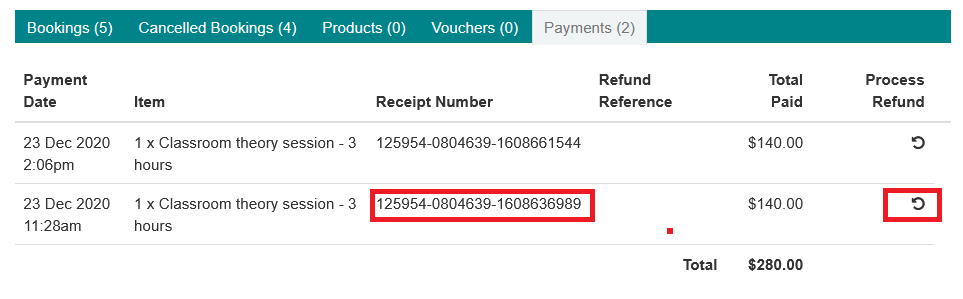
- Type in the amount of refund, This can be the full amount or a partial amount
- Select Refund

- If the refund was successful a transaction reference will be displayed.

- If the refund fails a message is displayed with the error response received form the bank.

- Close the client history
- Open the client history again and select the payment tab to view the recorded refunds
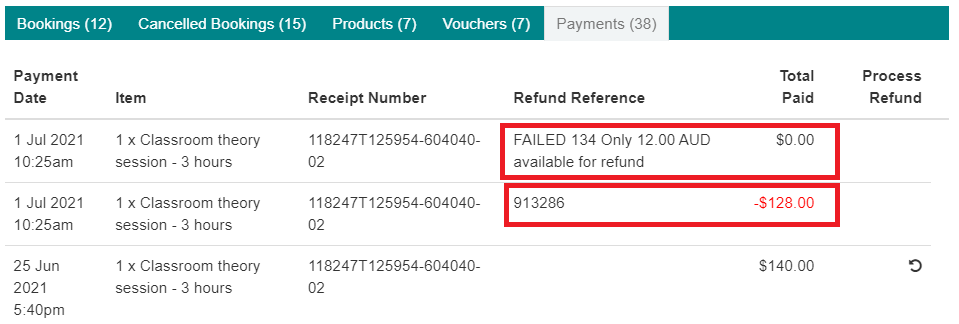
A successful refund has a refund reference number with a negative amount in red.
An unsuccessful refund is displayed as Failed with the response message received from the bank.
Note: Processing a refund does not cancel the booking or change voucher usage.
Notify a customer
When a refund occurs a refund notification is sent to the customer automatically with a copy also sent to the account administrator. There are two notification templates to cater for successful refunds and failed refunds.
Refund email notifications:
- Refund confirmation success
- Refund confirmation failed
Why do refunds fail?
There are many reasons why a refund might fail, here is some of the common reasons:
- The card used to make the original refund has been cancelled or has expired
- The bank associated with the card could not be contacted when the refund was attempted
- The amount entered for refund exceeds the amount available for refund
See Online payment response codes for more reason for refund failures.
Was this article helpful?
That’s Great!
Thank you for your feedback
Sorry! We couldn't be helpful
Thank you for your feedback
Feedback sent
We appreciate your effort and will try to fix the article