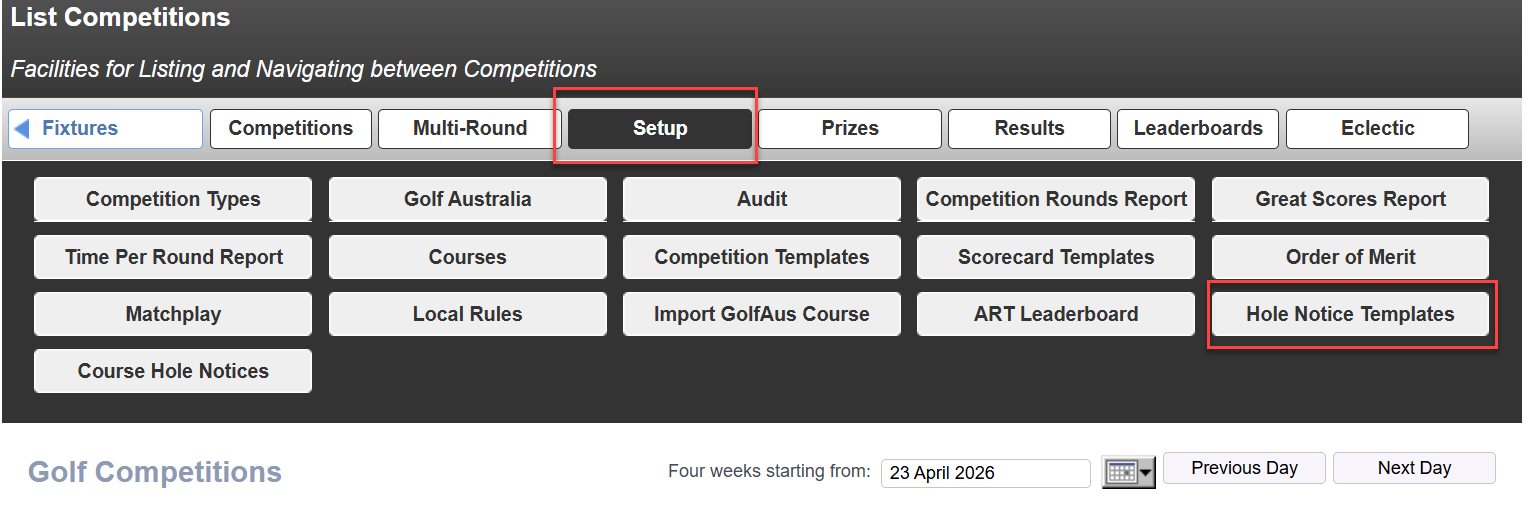
To create a MiScore Hole Notice Template - Select Competitions > MiScore Hole Notices.

This page can also be accessed from the Competitions page under Setup > Hole Notice Templates.
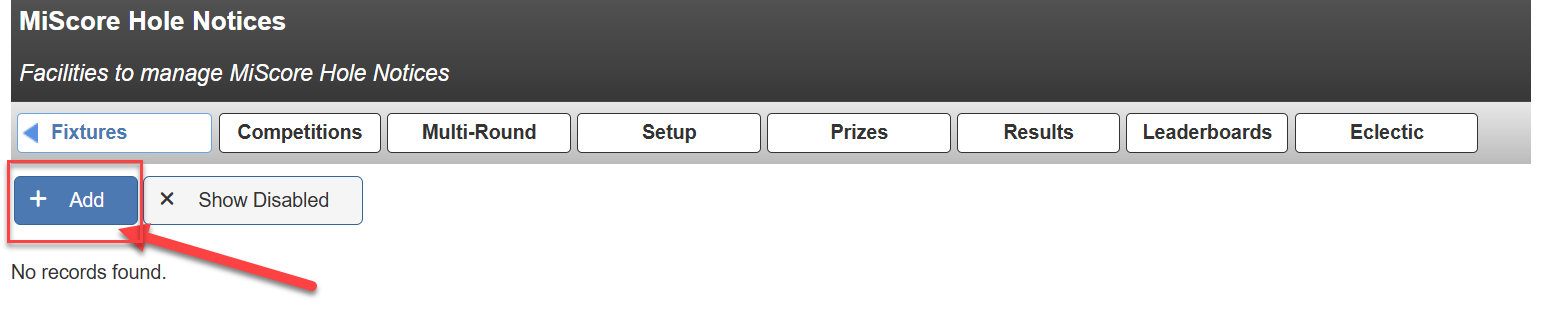
Select 'Add' to create a new notice.
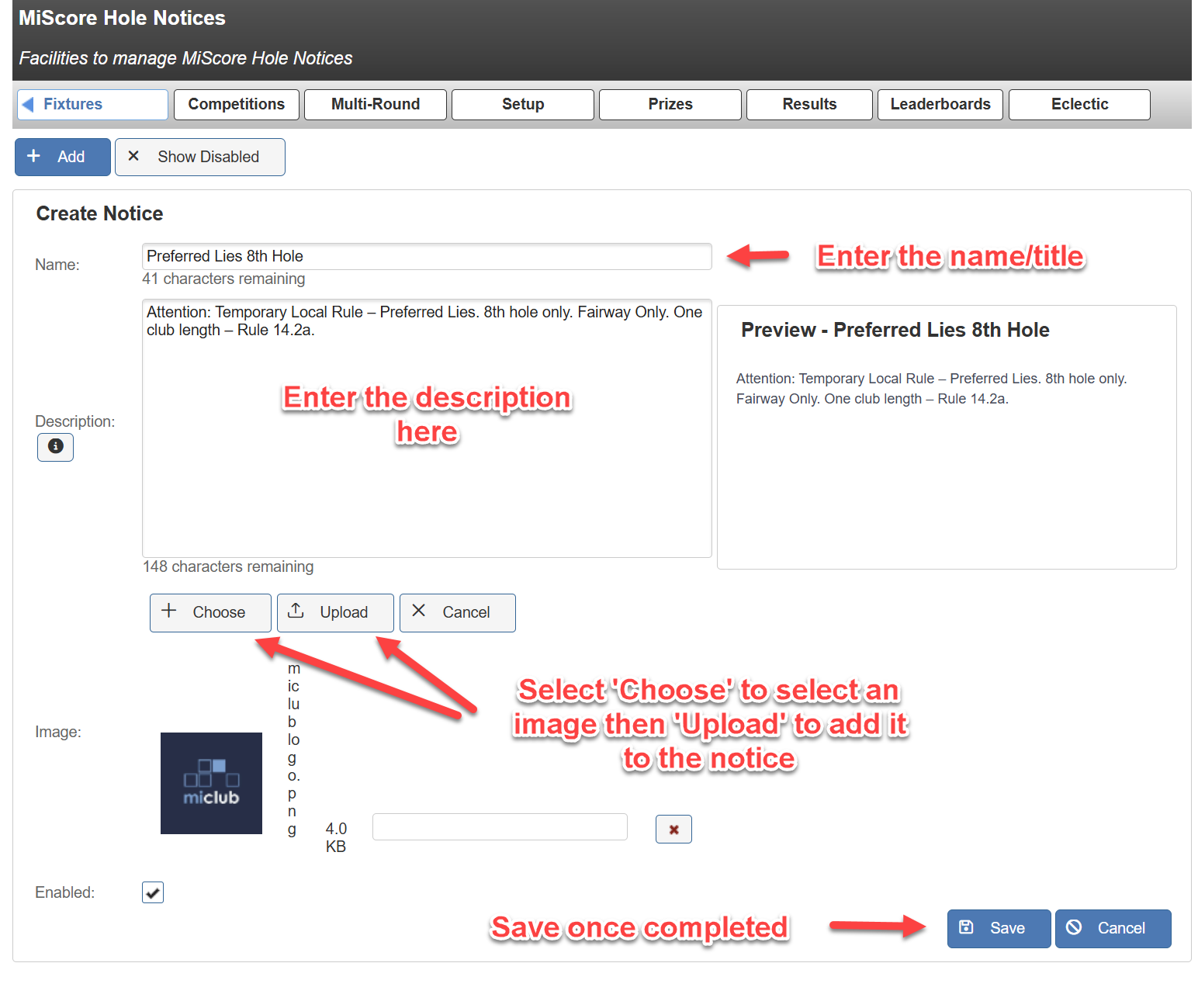
Fill in the Notice details in the relevant sections.
(Please note: an image is not required to configure a hole notice template)
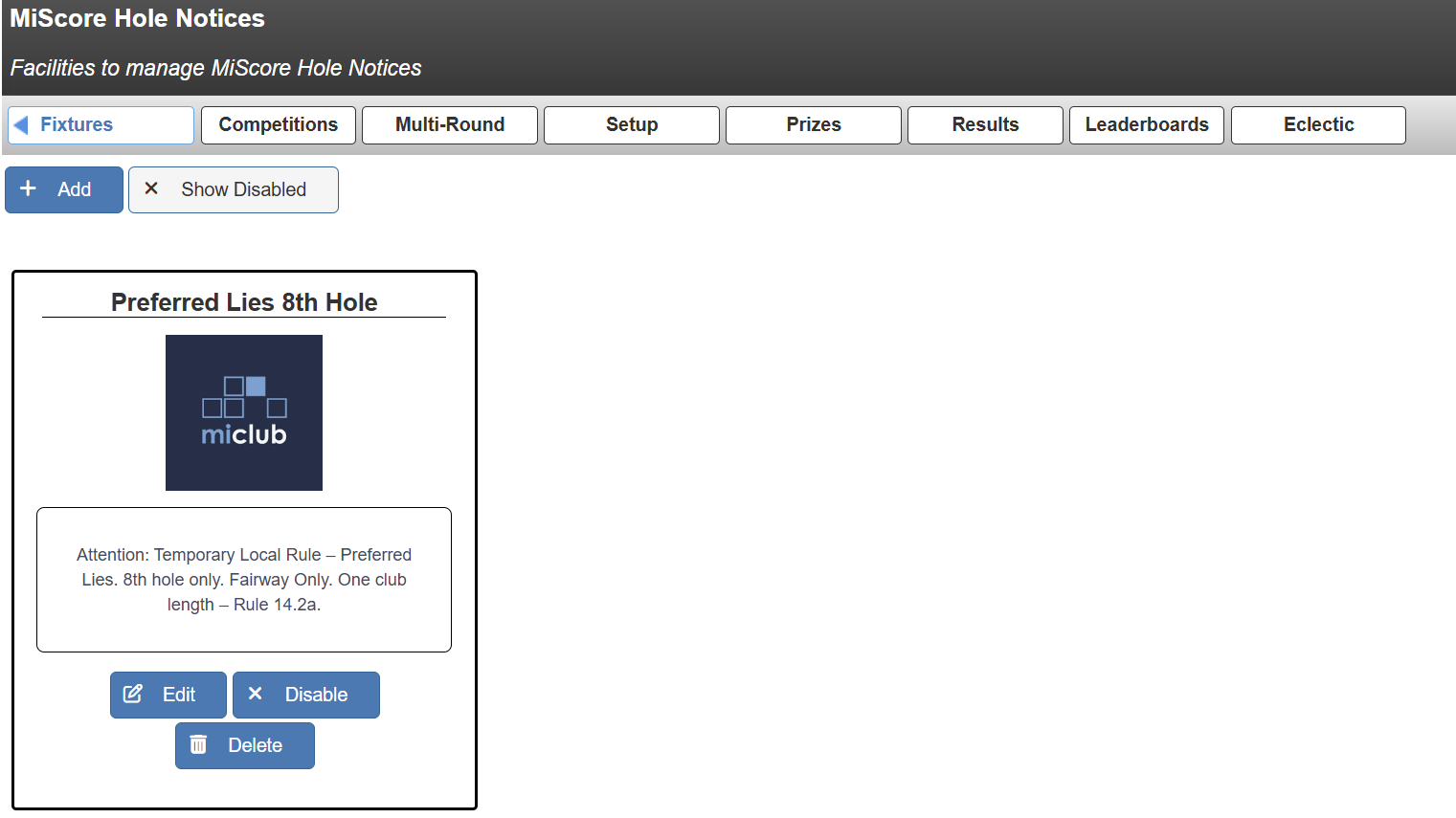
The notice will then appear in the Hole Notice Template page. From here it can be edited, disabled/enabled or deleted.
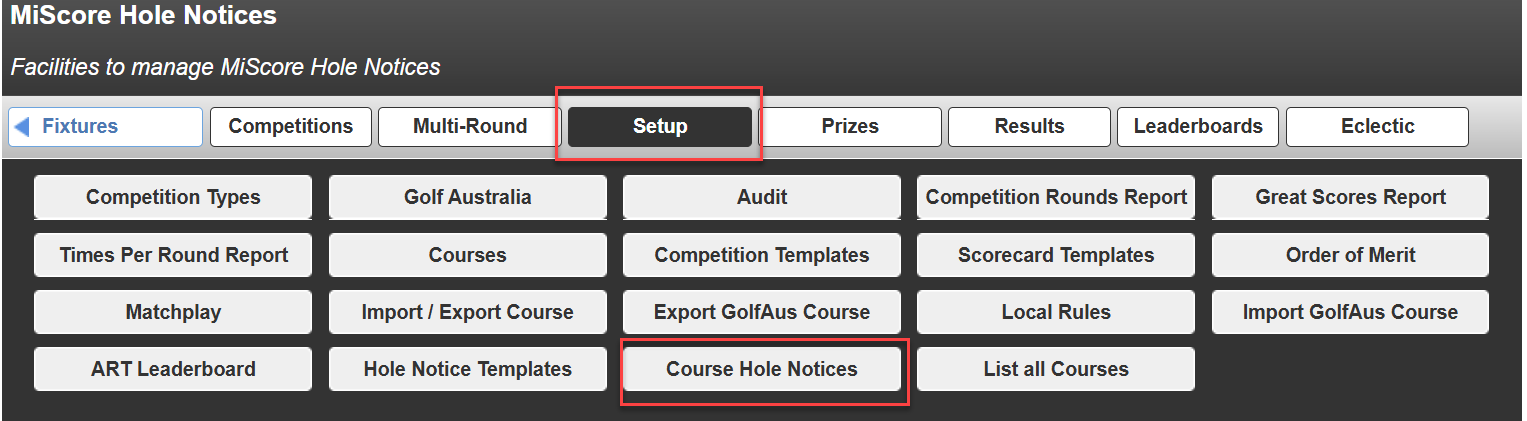
To apply the notice template select Setup > Course Hole Notices.
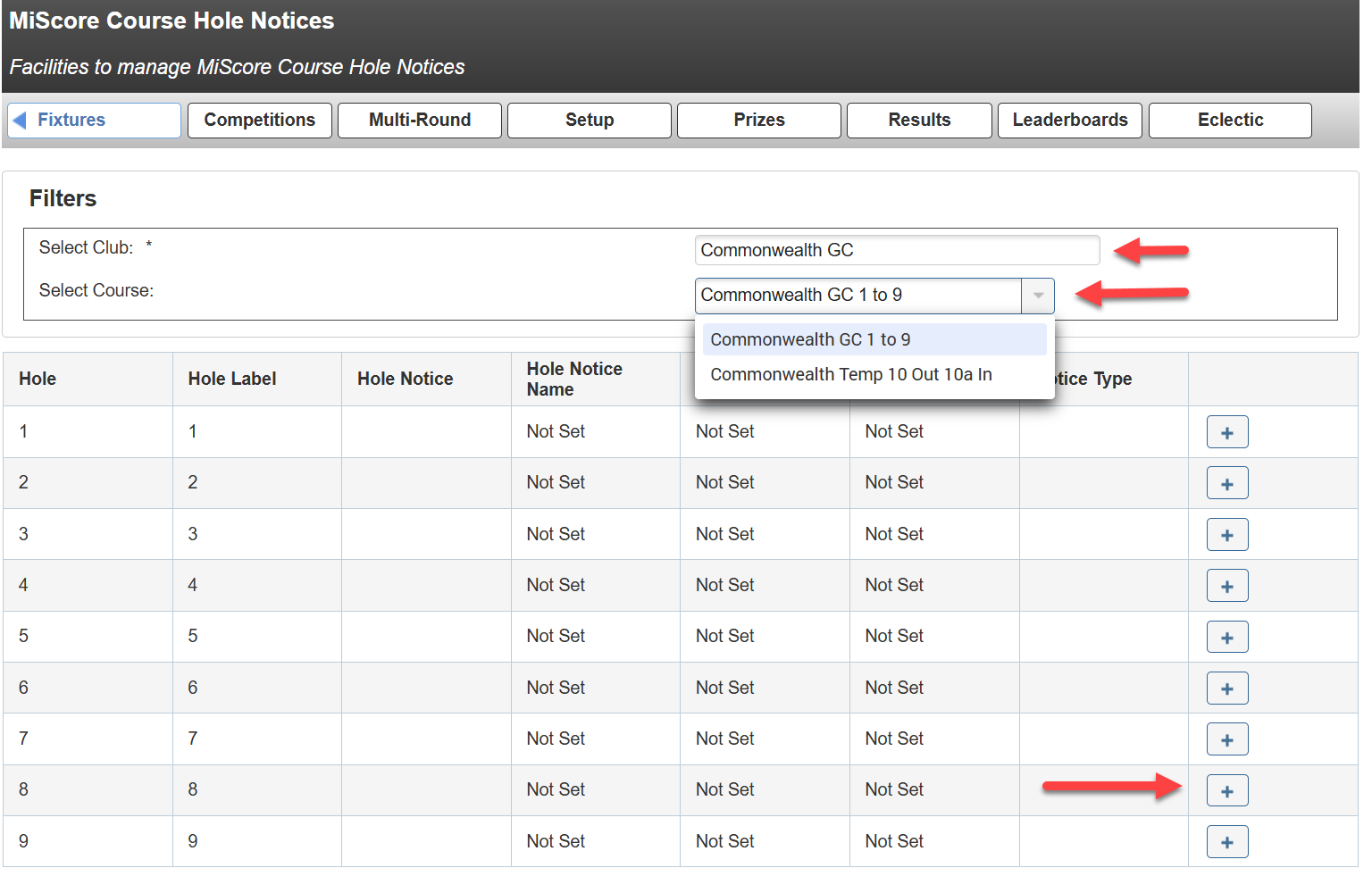
Select the Club > Select the drop down to change which course setup you're wanting to add the notice to > Select the + next to the relevant hole.
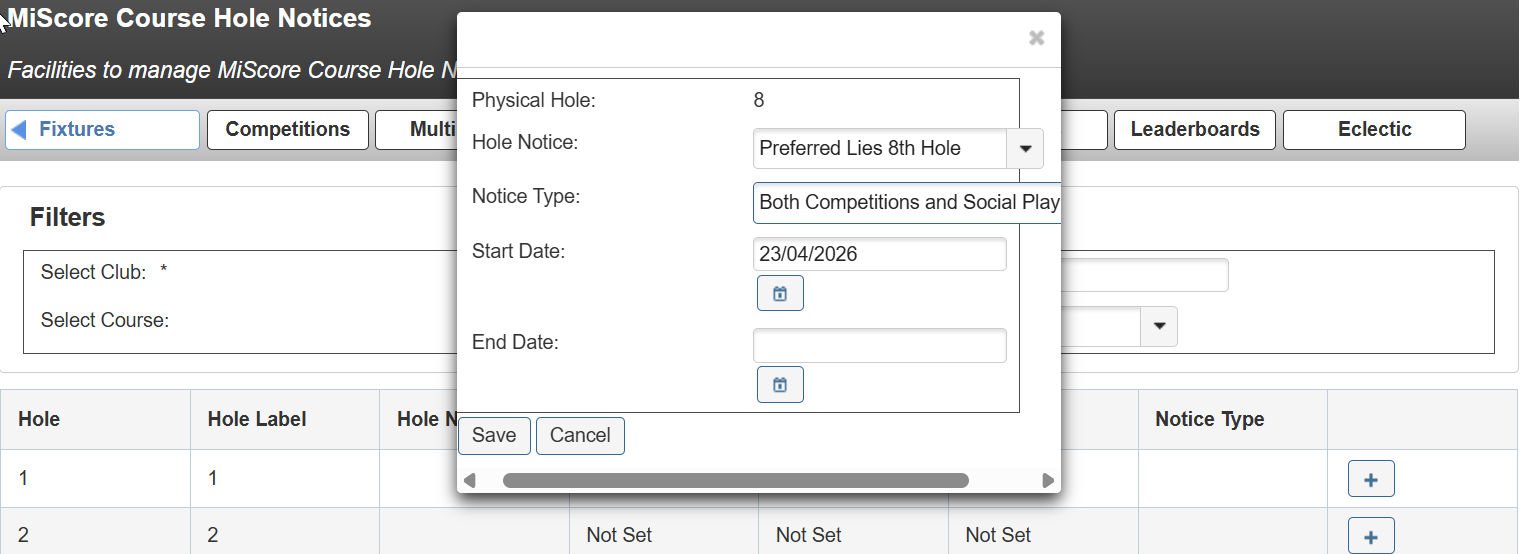
Here you can adjust the following;
Hole Notice: Select the drop down to select which Hole Notice Template to apply.
Notice Type: Select the drop down to choose whether the notice is applied to Competitions only, Social scoring only, or Both.
Start Date/End Date: Choose what dates the notice will be visible between. Leave the End Date blank to keep the notice indefinitely until manually disabled.
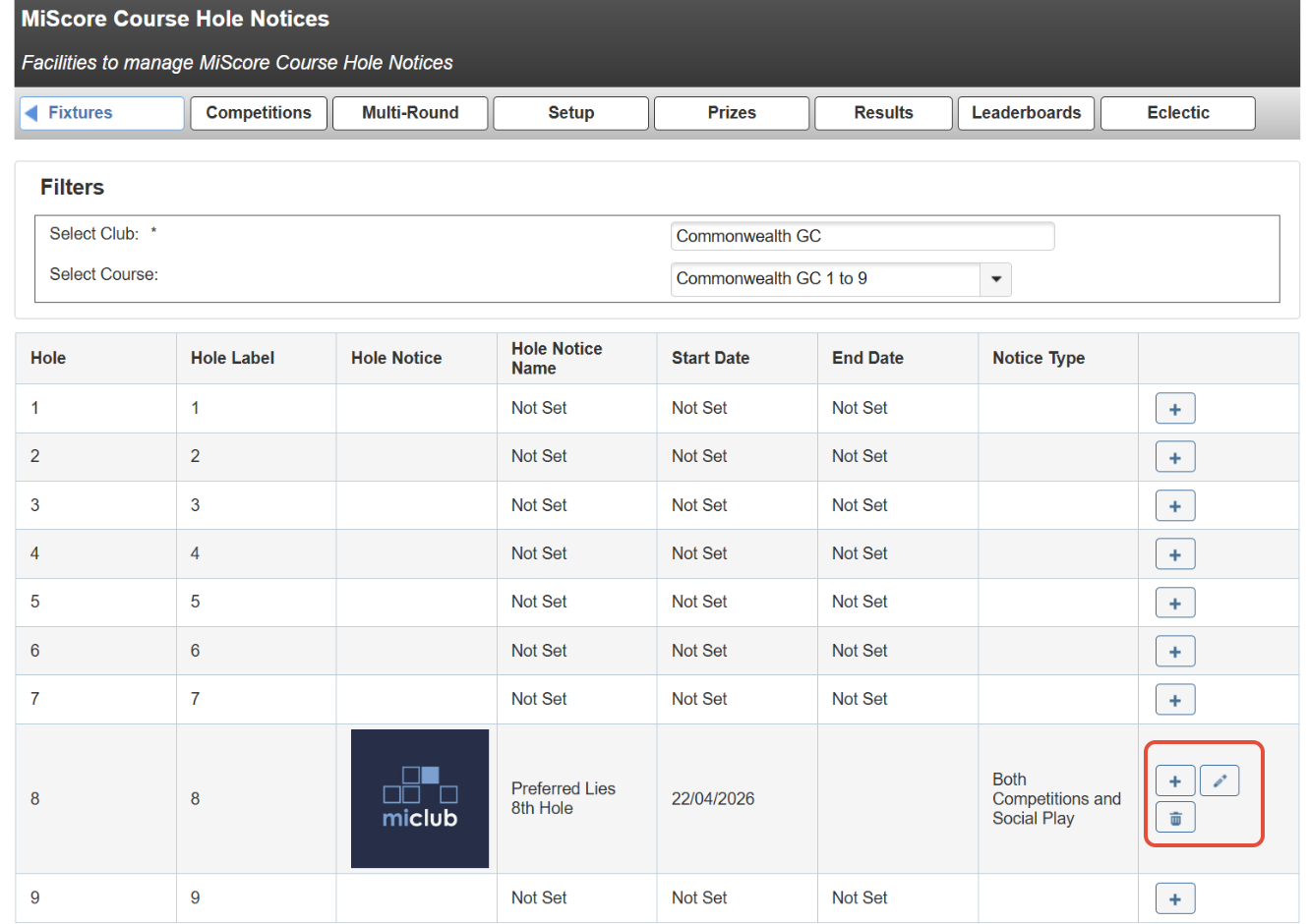
The active notice will then appear in the list and the above details can be edited by selecting the pencil icon.
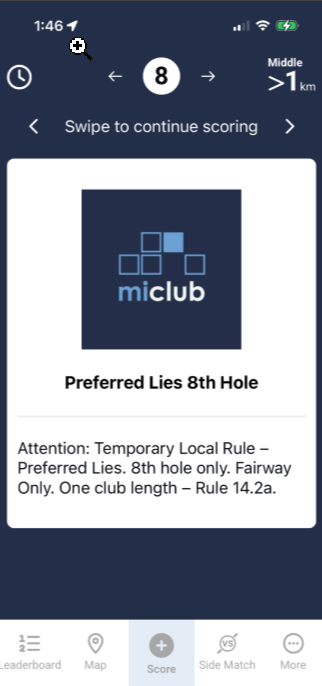
On MiScore the notice will appear when swiping to the relevant hole, players can then swipe again to continue scoring.
Was this article helpful?
That’s Great!
Thank you for your feedback
Sorry! We couldn't be helpful
Thank you for your feedback
Feedback sent
We appreciate your effort and will try to fix the article