Screenshots are from a iPhone device using iOS version 26
- Open iPhone Settings
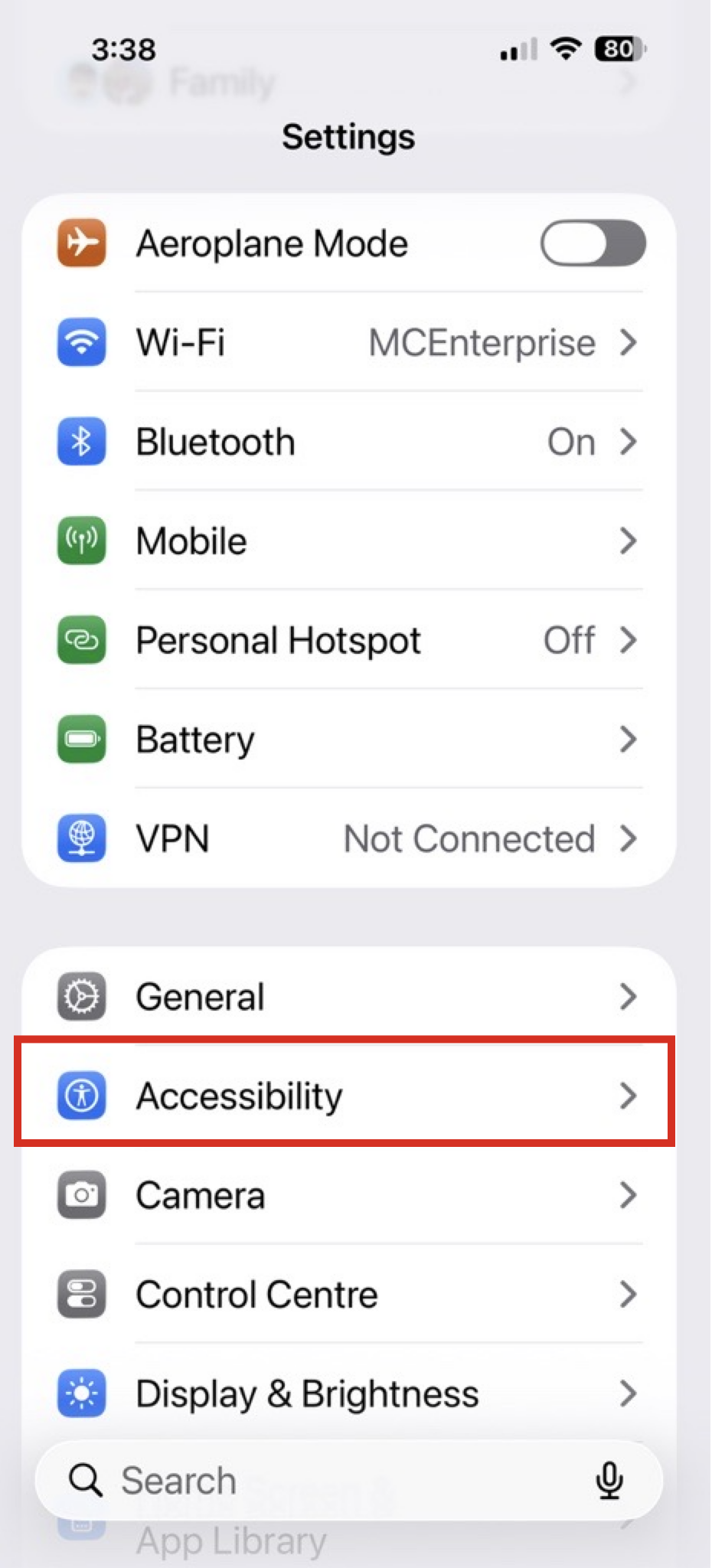
- Scroll down and select "Accessibility"
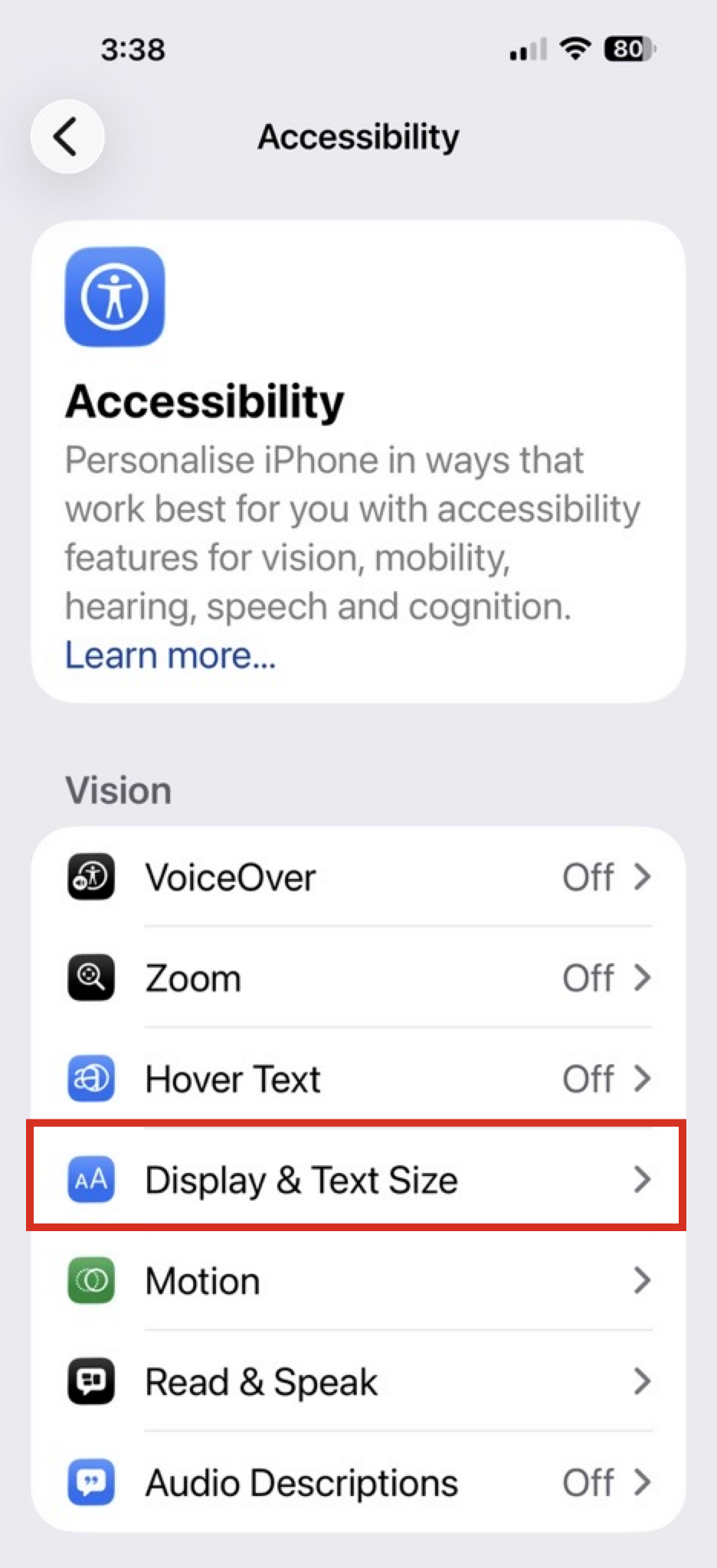
- Select "Display & Text Size"
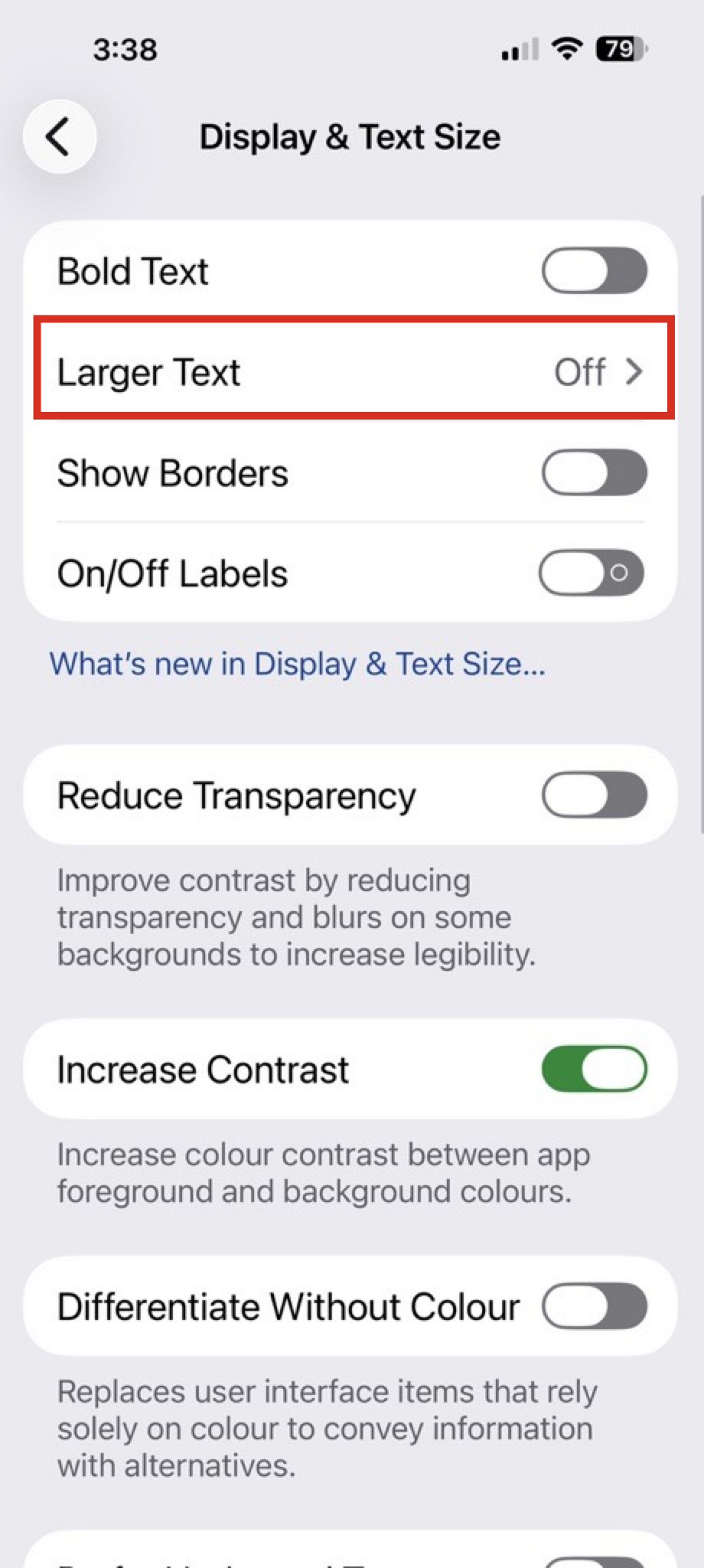
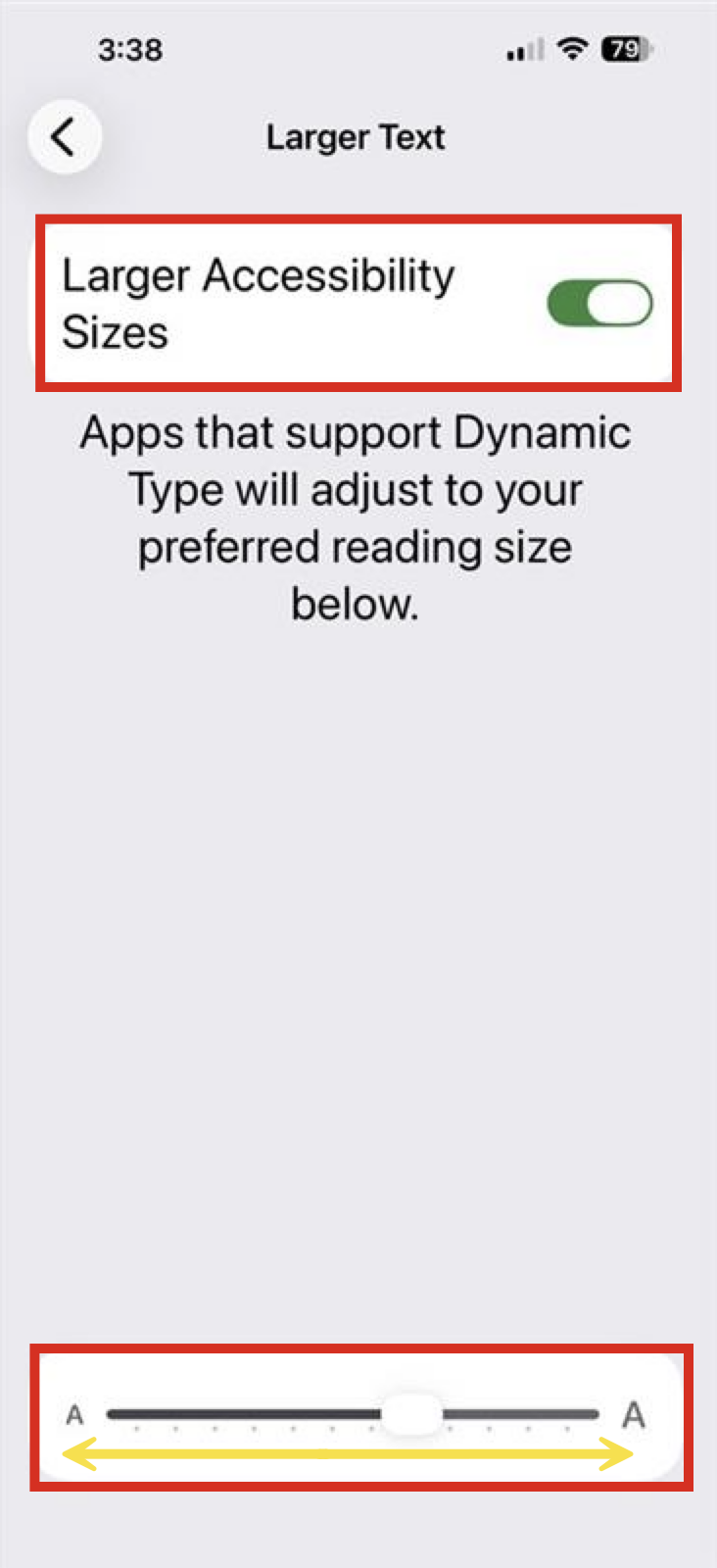
- Select "Larger Text"
- "Lager Accessibility Sizes" toggle switch pointing to your right / on
- Swiping left will make font size smaller
- Swiping right will make the font size bigger
Was this article helpful?
That’s Great!
Thank you for your feedback
Sorry! We couldn't be helpful
Thank you for your feedback
Feedback sent
We appreciate your effort and will try to fix the article