You can use report filters to refine the report options for each report type (Booking, Purchase, Voucher or Activity) to refine the report options to meet your requirements. The filters can be saved for future use.
Saving report filters
Report filters can be saved by selecting the required columns and output option and saving the filter.
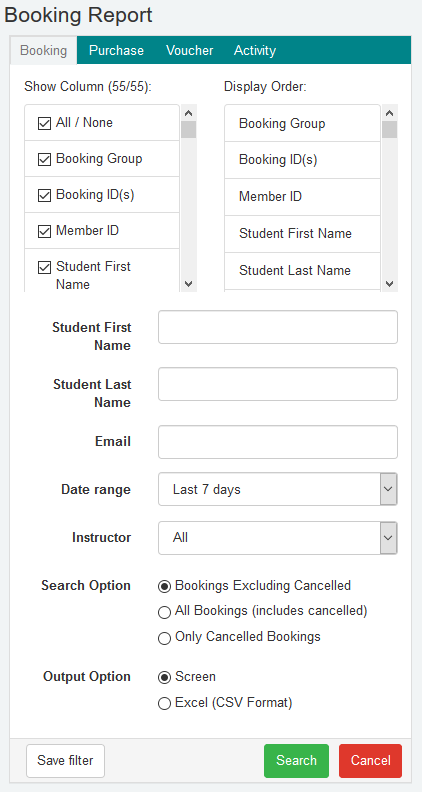
- Select the Reports tab
- Select a report type tab (Booking, Purchase, Voucher or Activity)
- Select the Columns you want in the report
- Select a date range for the report. Filters do not support specific date ranges
- Select an output option, use screen to display on the screen or Excel (CSV Format) to create a file to use in Excel
- Select Save Filter button
- Type a name for your Report Filter
Using report filters
Saved Report filters appear at the top of the page in a pull down list.

- Select the Reports tab
- Select a report type tab (Booking, Purchase, Voucher or Activity)
- Select a saved filter from the filter pulldown
- If required make any adjustments to the report option
- Select Search button
Deleting report filters
Report filters can be deleted by selecting the filter and using the Delete Filter button to remove.
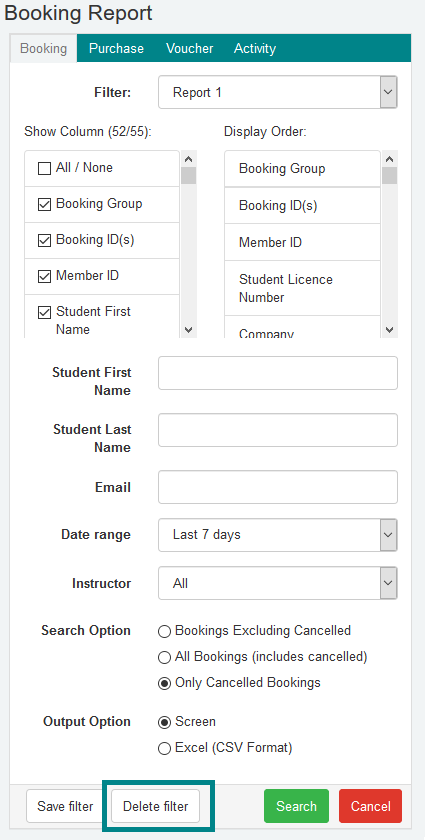
- Select the Reports tab
- Select a report type tab (Booking, Purchase, Voucher or Activity)
- Select a saved filter from the filter pulldown
- Select Delete Filter button
Was this article helpful?
That’s Great!
Thank you for your feedback
Sorry! We couldn't be helpful
Thank you for your feedback
Feedback sent
We appreciate your effort and will try to fix the article